
Reading a keeper's work
A keeper doesn’t just reply — it works: it reads files, edits them, runs commands, searches the tree, spawns sub-agents, and launches background jobs. A plain chat log would flatten all of that into walls of text. Paddock instead renders each of the keeper’s tool calls as a compact, expandable block, and gives you two dedicated tabs — Files and Changes — for inspecting and committing what the agent left behind.
This guide is a tour of those review surfaces. For who did a piece of work (a human, a schedule, another chat), see the companion Provenance concept.
How tool calls render
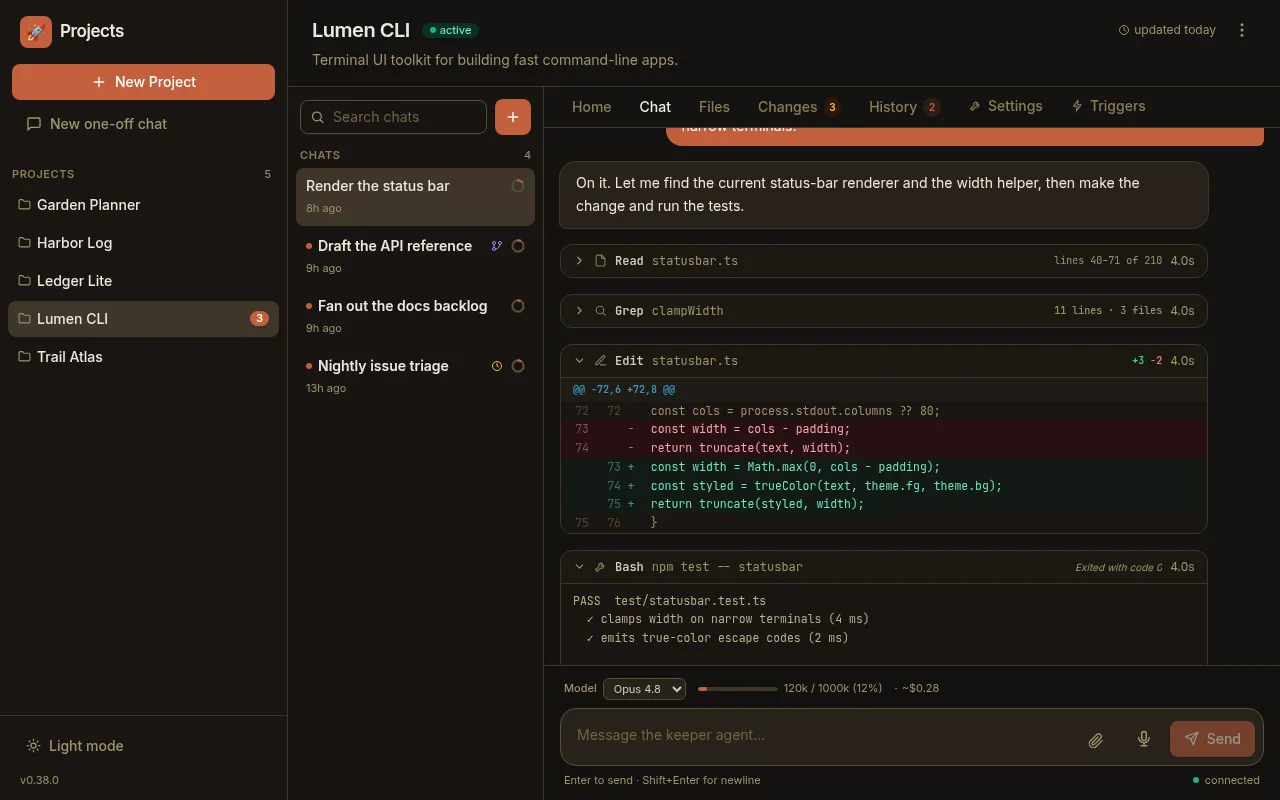
Section titled “How tool calls render”Every tool the keeper calls becomes a collapsible block in the transcript. The header always shows a per-tool icon, the tool name, a short subtitle (usually the target), and — on the right — a duration and any status chips. Click a block to expand its body. Blocks that carry a rich body (a diff, an image, split output) have that detail reconstructed from the transcript when the chat loads, so reading a conversation back shows the full rich rendering. (A tool call whose transcript carries no such detail simply falls back to its plain output.)
Edit and Write show a real diff
Section titled “Edit and Write show a real diff”An Edit, MultiEdit, or Write renders as a git-style diff with real file
line numbers — not a guess. Paddock reads the structured patch Claude Code
already computed, so each hunk carries its true @@ -old,n +new,n @@ header, a
left gutter of old line numbers, a right gutter of new ones, and red/green tinting
for removed and added lines. The header carries a compact +3 −2 stat (additions
in green, deletions in red). Very large diffs are capped for rendering — the stat
stays exact and a note flags that the diff was truncated.
Read shows the range — and inlines images
Section titled “Read shows the range — and inlines images”A Read block’s subtitle is the file, and its metadata shows the line range that
was read, e.g. lines 40–71 of 210. When the keeper reads an image that
lives inside the project directory, the block renders the picture inline
rather than a path — so a screenshot the agent looked at is right there in the
transcript.
Bash separates stderr and surfaces the exit status
Section titled “Bash separates stderr and surfaces the exit status”A Bash block shows the command as its subtitle. When there’s more to say than a
clean stdout, the body splits stderr into its own red panel so warnings and
errors don’t hide inside normal output. The header can carry an interpretation of
the exit status (for example Exited with code 0), an amber interrupted chip
if the command was cut off, and a short hint for a recognised git operation (like
push → main). A clean command with nothing unusual just shows its output.
Grep and Glob show counts
Section titled “Grep and Glob show counts”A search collapses to its result size instead of dumping every hit: a Grep
shows something like 11 lines · 3 files (or just the file count in
files-with-matches mode), and a Glob shows N matches. A truncated result
set is prefixed with ≥ so you know the real number is larger than shown.
Sub-agents and background jobs stand out
Section titled “Sub-agents and background jobs stand out”- A
Task(or SDKAgent) call — a sub-agent — is tinted with an accent border and a sub-agent badge, with a spark icon and the sub-agent’s description as its subtitle. Its own steps and its token cost roll up into the block, and you can expand it to load the nested steps the sub-agent ran. - Anything launched detached — a
Monitor, a background-task op likeBashOutput/TaskStop/KillShell, or arun_in_backgroundcommand — gets a sky-blue background badge and a colored status chip (running,completed,killed,timed out) so long-lived async work is easy to spot and track.
Errors and in-flight calls
Section titled “Errors and in-flight calls”A tool that failed is tinted rose with an error chip; a tool still running shows a spinner and a running label, which reconciles into the finished block the moment its result lands.
Paddock’s own tools render as first-class UI
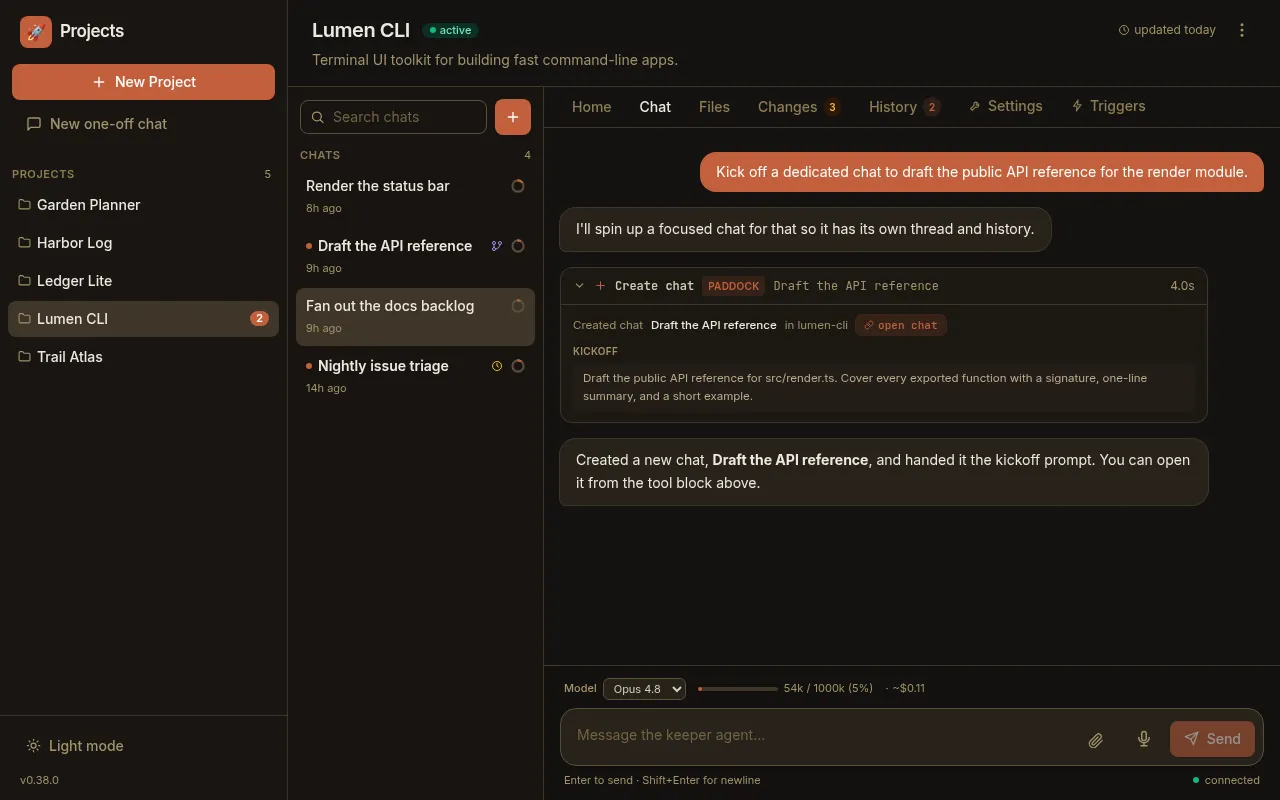
Section titled “Paddock’s own tools render as first-class UI”When a keeper uses Paddock’s own management tools — the mcp__… tools it can be
given to create chats, fork them, send messages between them, or list projects —
those don’t render as raw mcp__paddock_manage__create_chat noise. Each gets a
humanized name (so create_chat reads as Create chat), a Paddock
badge, and a per-tool icon.
The management tools also get dedicated bodies parsed from their result: a list-projects call shows project pills; a list-chats call shows a chat list with live running dots; a create or fork call shows the chat’s real title and its kickoff prompt, and a send-message call shows the message — each with a link straight into the chat it touched.
The live context + cost meter
Section titled “The live context + cost meter”While you read, two small readouts tell you how “heavy” the chat has become. They live in the sidebar (a context ring per chat) and in the composer’s status row (a fuller context + cost line):
- Context is how full the model’s context window is — the tokens from the
last completed turn as a percentage of that model’s limit (1M for Opus,
Fable, and Sonnet; 200K for Haiku), shown like
120k / 1000k (12%). Because it reflects the last completed turn, it updates a beat behind a streaming turn, and the ring/bar turns amber as you near the top of the window. Before a chat’s first turn there’s nothing to measure, so it readscontext: —. - Cost is the chat’s cumulative token usage and an estimated dollar figure, including tokens spent by any sub-agents the keeper spawned. The dollar number is a ballpark at standard API list prices — a sense of scale, not a bill; on a Claude subscription it won’t match what you’re actually charged.
Browse what the agent wrote: the Files tab
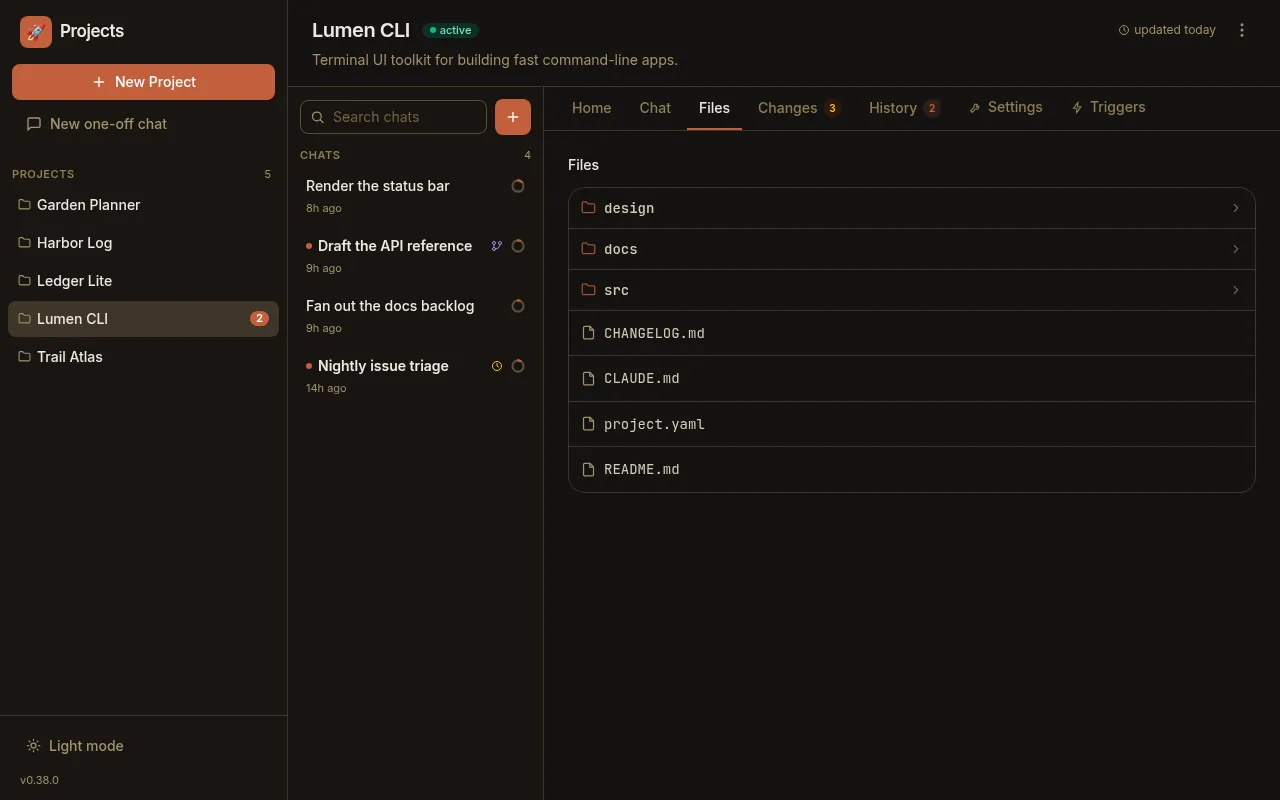
Section titled “Browse what the agent wrote: the Files tab”The Files tab lists the project’s working directory, one level at a time. Sub-
directories the keeper filed things under — a docs/, design/, or src/ — are
first-class: folders are visually distinguished, sort ahead of files, and carry a
chevron. Click a folder to descend; a .. entry and a path breadcrumb take you
back up.
The current folder or file is carried in the URL as
/projects/<slug>/files/<path>, so a view deep into a subtree is
deep-linkable and survives a refresh — handy for pointing someone at exactly
the file you’re looking at. Clicking a file opens it inline; a top-level file can
be pinned as a tab for quick access.
Review and commit: the Changes tab
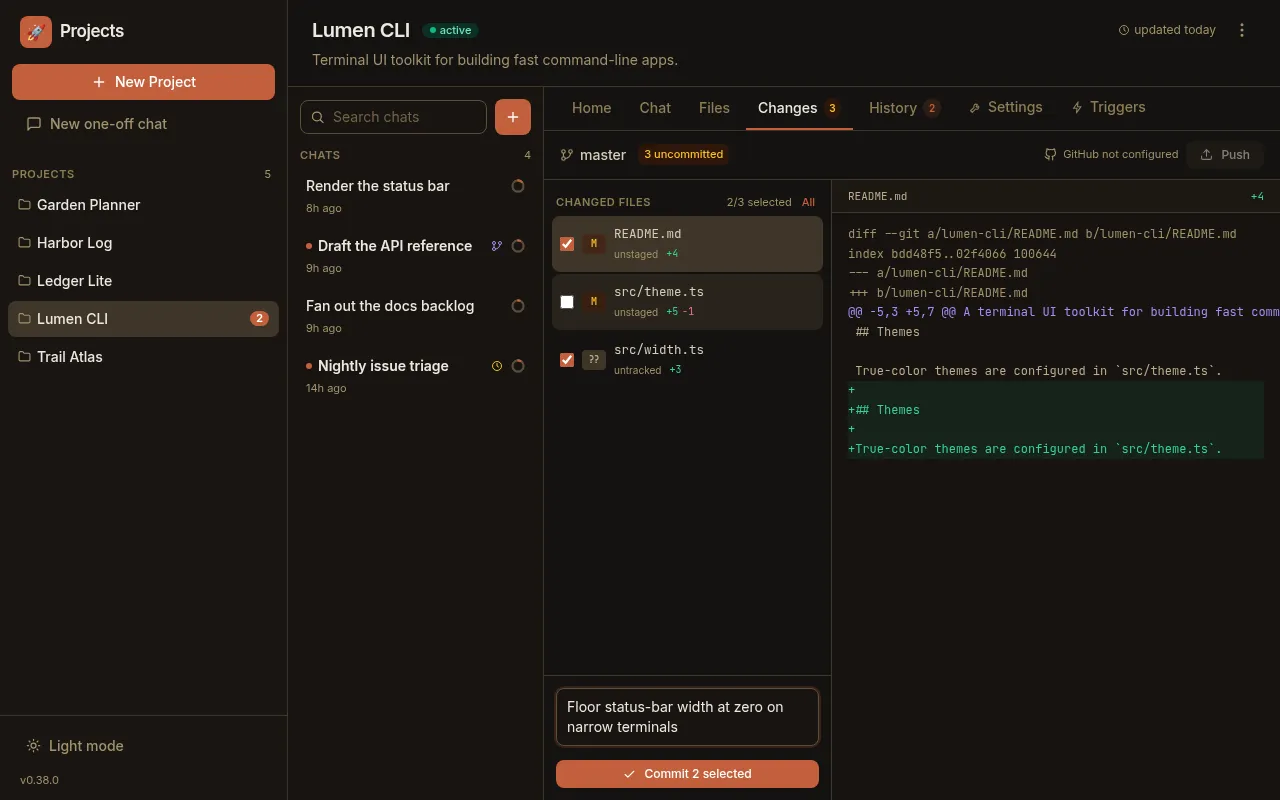
Section titled “Review and commit: the Changes tab”For a project whose store is a git repo, the Changes tab is where you turn a
keeper’s edits into commits. It lists every uncommitted file with its status
(added / modified / deleted / renamed / untracked) and a per-file +A −B line
stat; selecting a file shows its diff, with a matching stat in the diff header.
Untracked files show their new content rather than an empty diff.
The commit is selective. Each file has a checkbox (with a select-All /
None toggle and a running N/M selected count), so you can commit a subset
rather than everything at once. The commit button reflects the selection: it reads
Commit when everything is selected and Commit N selected when you’ve
narrowed it down.
You don’t have to open a project to notice it has pending work: the projects
grid flags each project’s uncommitted-file count with a small amber pill (a
branch icon and the count), fed by a single cheap git status over the whole
store — so a checkpoint that’s waiting to be made is visible before you even
click in.
Name a fork before you branch it
Section titled “Name a fork before you branch it”Reviewing often turns into “let me try a variation from here.” Forking a chat copies its full history into a new, independently resumable chat (see Chats are sessions). Paddock lets you name the fork up front: the Fork dialog opens with a Fork name field pre-filled with “Fork of ⟨chat⟩”, selected so a keystroke replaces it — so the branch lands in your sidebar with a meaningful title instead of an auto-summary you have to rename later.
Next steps
Section titled “Next steps”- Provenance: who did what — the origin and per-message attribution behind the chats you’re reading.
- Working in chats — the composer, queue, Stop, unread dots, and the context + cost meter in day-to-day use.
- Chats are sessions — persistence, resume, and forking.
- The sweeper — the post-turn curation that keeps a
project’s
OVERVIEW.mdandCHANGELOG.mdcurrent.